
You’ve got your phone or laptop ready, your classmates are already in the game, and you’re staring at a screen asking for a code. The problem is that you don’t know where to enter it, or the code you received isn’t working.
The good news is that joining a Blooket game is straightforward once you know which page to open and what information you need.
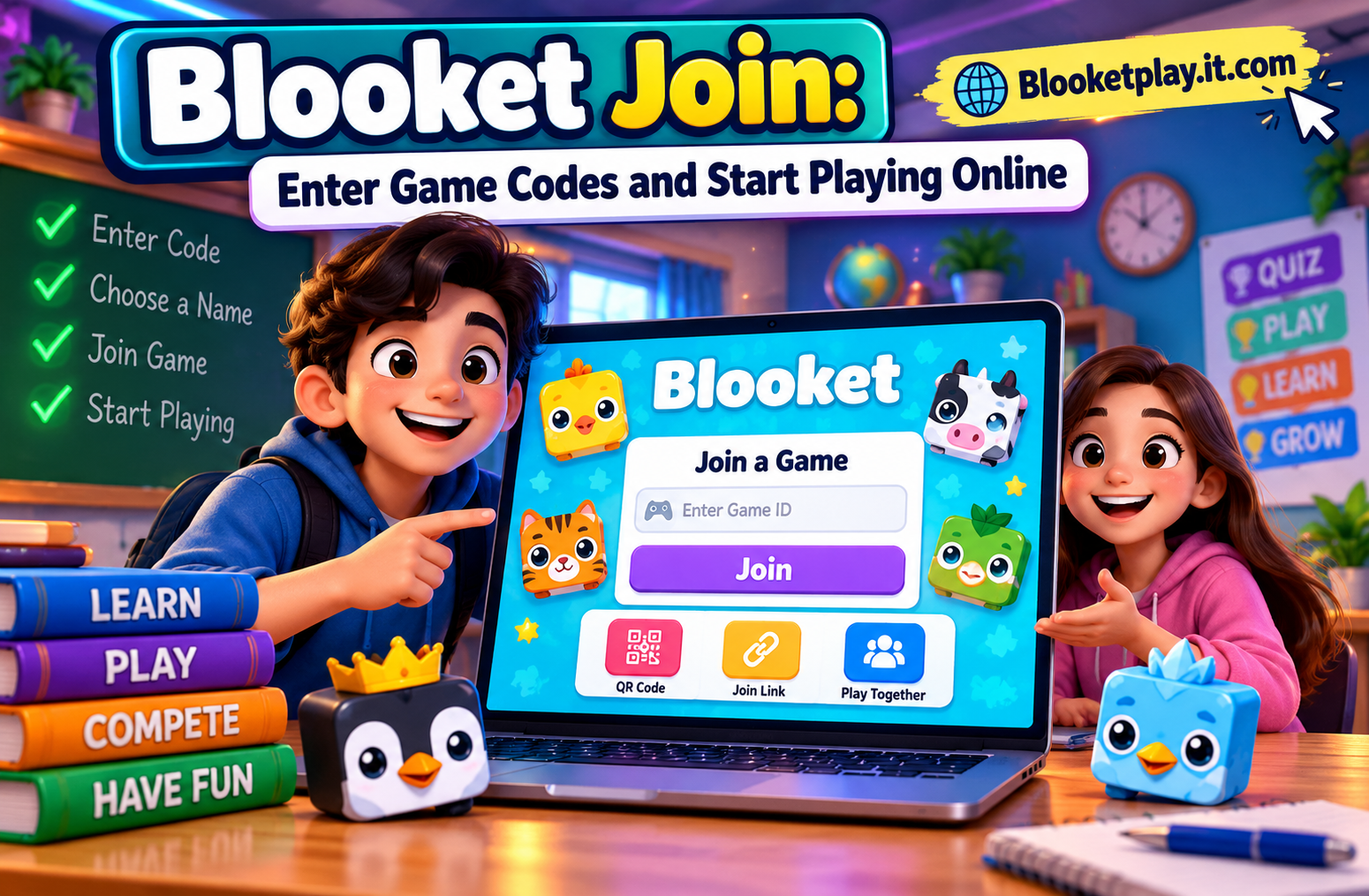
Blooket Join lets you enter a live educational game using a game code, QR code, or direct join link. Visit play.blooket.com/play, enter the code provided by your teacher or host, choose a nickname, and follow the on-screen instructions. You don’t need a Blooket account to join a standard live game.
What Is Blooket Join?
Blooket Join is the process of entering a game hosted on Blooket, an educational platform that turns quizzes into interactive games. Teachers use it to make lessons more engaging, while students answer questions and compete in different game modes.
The official joining page is play.blooket.com. This is the best place to start when you already have a game code.
Blooket uses characters called Blooks as player avatars. Depending on the selected game mode, answering questions can help players earn rewards within the game, compete with classmates, or make progress toward a specific objective.
You don’t need to create an account just to enter a standard live game. However, an account may be needed for hosting games, managing question sets, and accessing saved account features.
How to Join a Blooket Game Step by Step
Follow these simple steps if your teacher or game host has shared a Blooket code.
Step 1: Open the Official Blooket Join Page
Open a web browser on your computer, tablet, or smartphone. Enter https://play.blooket.com/play in the address bar.
You should reach Blooket’s official game-joining screen. You don’t need to download a separate application to use this browser-based joining method.
Step 2: Enter Your Blooket Game Code
Ask your teacher or host for the active Game ID. Type the code into the Game ID field and submit it.
Check the digits carefully before continuing. Even one incorrect digit can prevent you from entering the correct session.
Always use the code supplied for the current game rather than one copied from an old lesson, video, or website. A code displayed online doesn’t guarantee that the game is still active.
Step 3: Choose a Nickname
After submitting a valid code, follow the prompts to enter a nickname or use a randomly generated name if that option is available.
In a classroom, choose the name your teacher expects. An easily recognised nickname helps the teacher identify your participation.
Avoid including personal information in your nickname. Your phone number, home address, and other private details aren’t necessary for joining a game.
Step 4: Select a Blook and Wait
If the game offers an avatar selection screen, choose an available Blook. You’ll then wait in the game lobby until the host starts the session.
If the teacher hasn’t started the game yet, waiting in the lobby is normal. You don’t need to enter the code repeatedly unless the page displays an error or the host asks you to rejoin.
Step 5: Start Playing
When the host begins the game, read the instructions on your screen. The rules differ by game mode, so pay attention to how answers, points, and objectives work.
For example, a student joining a classroom vocabulary review may need to select the correct meaning of a word. In another mode, correct answers may help the player progress through a game objective.
For more details, visit the official Blooket student guide.
Can You Join Blooket Without a Game Code?
Yes, you can enter a hosted game without manually typing a code if the host provides another supported joining method. However, you still need the correct link, QR code, or access to a game.
There are three main ways to join a hosted Blooket game.
| Joining method | How it works |
|---|---|
| Game code | Enter the code on the official joining page. |
| QR code | Scan the code displayed by the host. |
| Direct join link | Open the link shared by the host. |
A useful example is a remote science lesson. Instead of asking every student to type a code from a shared screen, the teacher can post a join link in the class chat. Students open the link and follow the prompts.
What if you don’t have a code, link, or QR code? Ask your teacher or host to share one. If you want to practise independently, you can explore question sets through Blooket’s Discover section and select a supported solo game instead.
How to Fix Common Blooket Join Problems
Sometimes the joining process doesn’t work on the first attempt. Before switching devices or creating an account, identify the error you’re seeing.
The Blooket Game Code Isn’t Working
Check every digit and make sure the host shared the code for the current session. If it still fails, ask the host to confirm that the game is active and share the code again.
A code from an old session may no longer work. Avoid guessing random numbers because they won’t reliably connect you to the intended game.
The Blooket Page Won’t Load
Check your internet connection, reload the page, and try opening the official Blooket website in an updated browser.
If other websites also fail to load, the problem may be your internet connection. If only Blooket is affected, try again later or check with your teacher about school network restrictions.
Your Nickname Is Rejected
Try a different, appropriate nickname and follow the instructions displayed on the screen. Your host may have enabled random names or other player settings.
If the issue continues, ask the host whether a specific naming rule applies to the session.
The Game Has Already Started
Ask whether late joining is allowed. Blooket provides a hosting option that allows students to join after a game begins, so access can depend on the host’s settings.
If late joining is disabled, you may need to wait for another session or ask the teacher to restart the game.
Can You Play Blooket on a Phone or Laptop?
Yes. You can join Blooket through a compatible web browser on a smartphone, tablet, or computer. The standard joining process doesn’t require a separate game download.
On a phone, open the official joining page and enter the code supplied by the host. If you’re using a QR code displayed on the same phone, you may need another device to scan it. Alternatively, ask for the direct join link.
On a laptop, typing the code is usually convenient when the host displays it on a classroom screen or shares it during a video call.
If the page behaves differently on your device, try refreshing it or switching to an updated browser. School networks and device restrictions can also affect access, so check with your teacher if the website is blocked.
How Teachers Can Host a Blooket Game
If you’re a teacher rather than a student, the process starts from the hosting side.
Teachers can select an existing question set or create one, choose an available live game mode, configure the session, and select the hosting option. Blooket then provides ways for students to join, including a Game ID, QR code, or shared link.
For example, a teacher preparing a science revision lesson could select a question set about the solar system and host a live game. Students enter through their own devices, and the teacher starts the session when the class is ready.
A practical tip is to display the joining instructions before starting the game. This gives students time to enter the lobby and reduces interruptions once the lesson begins.
Teachers should also choose participation settings that suit their classroom. Options such as random player names and late joining can be useful, depending on the activity.
For detailed instructions, read the official guide on how to host a Blooket game.
Is Blooket Free to Join?
Joining a standard live Blooket game doesn’t require a student account or a paid subscription. You can enter using the code, QR code, or link supplied by the host.
Some features for account holders and hosts may differ by plan. If you want to create games, manage question sets, or access additional features, check Blooket’s current official pricing information before signing up.
For students who simply want to answer questions in a classroom activity, start with the standard joining process rather than purchasing anything.
Tips for a Better Blooket Experience
A few simple habits can save time when you’re joining a game.
- Bookmark the official page. Save play.blooket.com so you don’t have to search for the correct website each time.
- Use the current code. Codes from previous lessons may no longer work.
- Choose a suitable nickname. Follow your teacher’s instructions without sharing unnecessary personal information.
- Read the game rules. Different modes have different objectives, so don’t assume every round works the same way.
- Ask for help early. If a code fails, tell the host before repeatedly trying to enter it.
Blooket can make revision more interactive, but playing a game doesn’t guarantee that every student will understand a topic. The value comes from the quality of the questions, the feedback provided, and the opportunity to review mistakes after playing.
Frequently Asked Questions About Blooket Join
1. What Is the Official Blooket Join Website?
The official joining page is play.blooket.com/play. Enter the Game ID provided by your teacher or host, then follow the on-screen instructions.
2. Do I Need an Account to Join Blooket?
No account is required to join a standard live game. An account may be needed for hosting, managing question sets, and using other account-based features.
3. How Do I Get a Blooket Join Code?
Ask the teacher or person hosting the game. The code is provided for a hosted session, so an old code or a random number found online may not work.
4. Why Does My Blooket Code Say Invalid?
You may have mistyped the code, received an outdated code, or tried to enter a session that is no longer available. Check with the host and try the current code again.
5. Can I Join Blooket on My Phone?
Yes. Open the official Blooket joining page in your phone’s browser, enter the current code, and follow the prompts. You can also use a QR code or direct link supplied by the host.
6. Can I Play Blooket Without Joining a Live Classroom Game?
Yes. Blooket supports independent solo gameplay through question sets in the Discover section. Choose a set, select Solo, and pick an available game mode.
Final Thoughts
Joining a Blooket game is simple when you have the correct code or a link from the host. Open the official joining page, follow the prompts, and check the code or session status if something goes wrong.
Your next step: Visit Blooket Join and enter the code provided by your teacher or host.
READ MORE: Blooketplay